This module describes multi-column layout in CSS. It builds on the
Box model module and adds functionality to flow the
content of an element into multiple columns.
This document is a Working Draft in the CSS&FP WG
Please send comments to the editor.
A list of current W3C Recommendations and other technical documents
including Working Drafts and Notes can be found at http://www.w3.org/TR.
Dependencies on other modules
This CSS3 module depends on the following other CSS3 modules:
- the Box model module, which this module extends
Introduction
This module describes multi-column layout in CSS. By using
functionality described in this document, style sheets can declare
that the content of an element is to be laid out in multiple
colums.
On the web, tables have also been used to describe multi-column
layouts. This module has two major advantages over table-based
layouts. First, it allows content to flow from one column to another
based on available space rather than document structure. Second, this
module allows the column width to be specified and the number of
columns to vary depending on available space.
New properties
This proposal describes a set of new properties in order to support
multi-column layouts in CSS. The new properties can be divided into
three groups. The first group set the number and width of the columns:
- column-count
- column-width
- column-min-width
- column-width-policy
The second group of properties describes the space between columns.
The concept of padding and borders are reused from the CSS box model:
- column-padding
- column-border
- column-border-color
- column-border-style
- column-border-width
The third group consists of one property which make it possible an
element to span several columns:
The column box model
Columns are laid out inside boxes generated by elements. The
general box model from CSS has been reused, and implementors should be
able to reuse their code. The figure below shows the various
components of an element with two columns inside it.
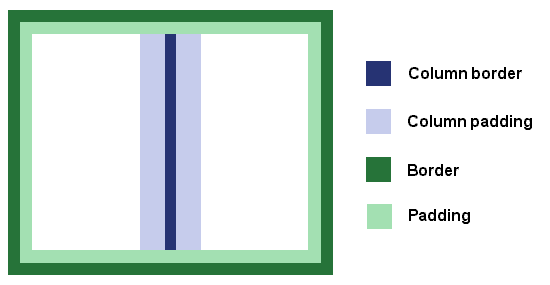
The layout in the figure above can e.g. be achieved with markup like:
<P STYLE="border: solid black 1em; padding: 1em;
    column-count: 2; column-border: solid black 1em; column-padding: 1.5em">...</P>
Note that the color of the border and padding areas have been
changed for the purpose of illustration in the figures of this document.
Columns within an element all have the same width, padding and border.
Content flow in columns
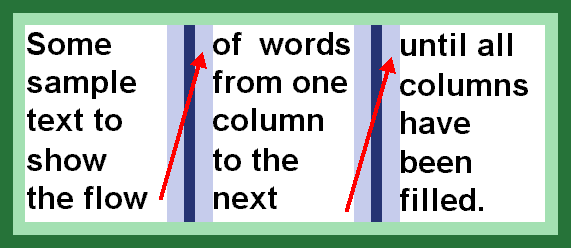
The number and width of columns
Finding the number and width of columns is fundamental when laying
out multi-column content. There are three different situations:
- the style sheet specifies the number of columns (through
'column-count') and lets the UA choose the column width (i.e.,
'column-width' is 'auto')
- the style sheet specifies the column width (through
'column-width') and lets the UA determine how many columns there is
room for (i.e., 'column-count' is 'auto').
- the style sheet specifies both the number of columns and their
width (through 'column-count' and 'column-width', respectively).
Note that the width of the column border and column padding must
also be taken into account when computing the widths of the columns.
The sum of all these are called CWPB in this proposal. The
mathematical definitinon is: CWBP = column_count * column_width +
(column_count-1) * (column_border_width) + (column_count-1) *
column_padding * 2).
In all three cases, the UA determines the height of the columns
based on the content which needs to be fitted. Content should be
balanced between columns to minimize the column height, while
honoring the 'widows' and 'orphans' properties.
In case 2 and case 3, the content width of the element may be
different from CWBP. In the figure below, the difference is marked by
the red area.
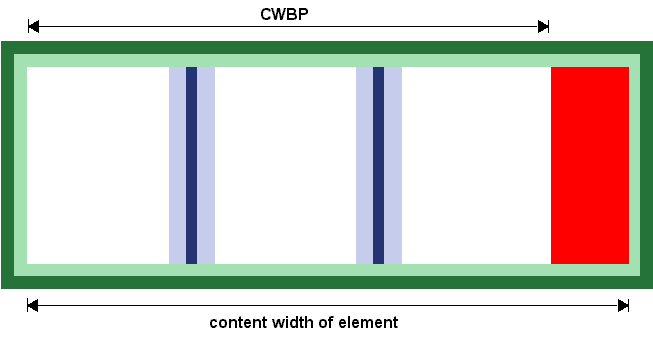
Reducing the number of columns
In no cases can CWPB be larger than the content width of the
element. If, based on the specified value of the column properties,
this is the case, the actual value of 'column-count' must be
reduced to make the columns fit inside the content area.
Here is one example:
DIV {
  width: 400px;
  column-count: 4;
  column-width: 100px;
  column-padding: 10%;  /* i.e. 10px */
  column-border: none;
}
In the example above, the number of columns must be reduced since
there isn't room for 4 columns. In order to find the number of columns
(n), the following equation must be solved:
300px >= n * 100px + (n-1) * 0px + (n-1) * 10px * 2
where n is the largest possible integer
Solving the equation yields n=2, i.e., the actual value of
'column-count' is 3 and the element will therefore have 3 columns.
The minimum actual value of 'column-count' is 1.
Increasing the width of columns
In most cases, the presentation looks best when CWPB is equal to
the content width of the element. In order for this to be achieved
without setting the width of elements explicitly, the column widths
can be computed in a flexible manner. This is controlled with the
'column-width-policy' property.
'column-width-policy'
Value: flexible | strict | inherit
Initial: flexible
Applies to: block-level elements
Inherited: no
Percentage values: N/A
This property describes how to interpret 'column-width'. The 'flexible'
value indicates that the width of columns can be increased to fill all
the available space. The 'strict' value indicates that 'column-width'
is to be honored.
Distributing extra space
If 'column-width-policy' has a value of 'strict', CWPB may end up
being smaller than the content width of the element. See the red area
of figure X above. The extra space is distributed according the the
value of the 'column-space-distribution' property.
'column-space-distribution'
Value: right, left, start, end, top, bottom, inner, outer, between, outside | inherit
Initial: end
Applies to: block-level elements
Inherited: no
Percentage values: N/A
Width and count property definitions
'column-count'
Value: <integer> | auto | inherit
Initial: auto
Applies to: block-level elements
Inherited: no
Percentage values: N/A
The 'column-count' property determines the number of columns into
which the content of the element will be flowed.
The 'auto' value means there will be as many columns as there is
room for. In this case, the number of columns is determined by the
column width, padding and borders.
An integer value sets the number of columns into which the content
of the element will be flowed.
Example:
BODY { column-count: 3 }
When an integer value is specified, the actual value of
'column-count' may be reduced so that all columns with into the
content area of the document.
'column-width'
Value: <length> | auto | inherit
Initial: auto
Applies to: block-level elements
Inherited: no
Percentage values: N/A
The 'column-width' property describes the optimal width of columns
within the element. Depending on the value of 'column-width-policy',
the actual column width may be larger than the specified one.
The actual value of 'column-width' may be smaller than the
specified value when there is only one column.
Column padding and border
'column-padding'
Value: <length> | <percentage> | inherit
Initial: 0
Applies to: block-level elements
Inherited: no
Percentage values: relative to 'column-width'
'column-border-color'
Value: <color> | inherit
Initial: the value of the 'color' property
Applies to: block-level elements
Inherited: no
Percentage values: N/A
'column-border-style'
Value: <border-style> | inherit
Initial: none
Applies to: block-level elements
Inherited: no
Percentage values: N/A
Note that the 'none' value forces the computed value of 'column-border-width' to be '0'.
'column-border-width'
Value: <border-width> | inherit
Initial: medium
Applies to: block-level elements
Inherited: no
Percentage values: N/A
'column-border'
Value: [ <'border-width'> || <'border-style'> || <color> ] | inherit
Initial: the value of the 'color' property
Applies to: block-level elements
Inherited: no
Percentage values: N/A
Spanning several columns
The 'column-span' property makes it possible for an element to span
across several columns.
'column-span'
Value: none | all | <integer> | inherit
Initial: none
Applies to: block-level elements
Inherited: no
Percentage values: n/a
This property describes how many columns the element spans. The
'all' value means that the element spans across all columns.
An integer value specifies exactly how many colums the element
spans. If the integer value is higher than the number of columns, the
element will span all columns.
A value other than 'none' will enforce column balancing.
Consider this example:
<DIV STYLE="column-count: 3; column-border: solid black 0.3em; column-padding: 0.3em">
  <H1 STYLE="column-span: all">An imporant element</H1>
  <P>...</P>
  <H2 STYLE="column-span: 2">A not-so important element</H2>
  <P>...</P>
</DIV>
In the above example, the H1 and the H2 elements will span 3 and 2 columns, respectvely. Also, both elements will enforce column balancing to happen. Here is a sample rendering:
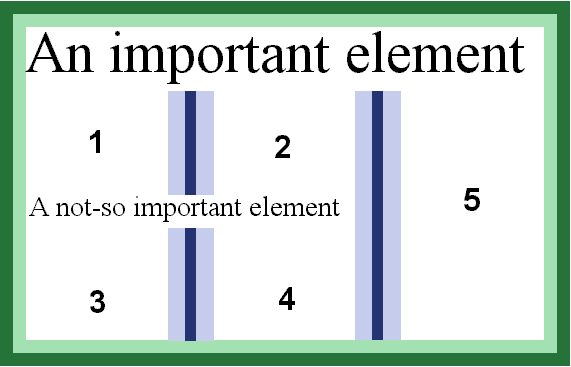
In the above figure, the numbers indidcate in what order the
content will flow. The first P element will flow into area 1 and 2,
while the second P element will flow into area 3, 4 and 5.
Page breaks will also cause column balancing.
Here is another example:
<DIV CLASS="article">
  <H1>The headline</H1>
  <P CLASS="intro">The introduction, sometimes called "ingress".
  <P>A normal paragraph.
  <P>Another normal paragraph.
</DIV>
It's convenient to wrap the DIV element around the whole article.
However, the headline and ingress should span several columns:
  DIV.article { column-count: 3 }
  DIV.article H1 { column-span: all }
  DIV.article P.intro { column-span: 2 }
Floating in and between columns
A common effect in modern typography is to float text elements in
and between columns. Describing this effect in a simple, scalable,
deterministic and visually pleasing manner is difficult. This document
proposes a simple solution by adding two new values to the 'float'
property: 'in-column' and 'mid-column'. Both values has the effect of
setting the content width of the floating element to the column width.
The 'in-column' value floats the element within a column, i.e. the
vertical position of the element may change due to viual
considerations. For example, the UA may decide that 'in-column'
elements are to be placed 10em from the top of the box. Similarly, the
UA is free to place "mid-column" elements vertically while making sure
the elements are floated in between columns. See figure below.

Both new values are rather fuzzy: they indicate that an element
should be floated, but does not give precise measurements. For
example, there is no way to say which columns a "mid-column" element
should float between.
Here is an example of use:
P.teaser {
  float: mid-column;
}
Acknowledgement
This document is based on several older proposals and comments on older
proposals. Contributors include Bert Bos, Dave Raggett, Chris Wilson,
Robert Stevahn, Peter Linss, Chris Lilley, Steve Zilles, Tantek Celik, Daniel Glazman and Ian Hickson.

